> For the complete documentation index, see [llms.txt](https://enterprise-ua.hideez.com/llms.txt). Markdown versions of documentation pages are available by appending `.md` to page URLs; this page is available as [Markdown](https://enterprise-ua.hideez.com/pochatok-roboti-pokrokova-instrukciya/fido2-and-u2f-authentication-guide.md).
# Керівництво з FIDO2 та U2F автентифікації
FIDO2 та FIDO U2F автентифікація з сервісом автентифікації Hideez
Ключ Hideez підтримує 2 стандарти автентифікації розроблені [Альянсом FIDO](https://fidoalliance.org/): FIDO U2F та FIDO2.
### [**Підключення Hideez Key до Windows 10**](/pochatok-roboti-pokrokova-instrukciya/kerivnictva-z-nalashtuvannya/kerivnictvo-z-nalashtuvannya-aparatnogo-klyucha/user-guide-first-steps-with-hideez-client-without-usb-dongle.md#step-2-pairing-a-hideez-key-device-with-windows-10)
### **Створення PIN коду на пристрої Hideez Key для технології FIDO**
{% hint style="info" %}
PIN-код, створений для пристрою безпеки для Windows (FIDO), може відрізнятися від PIN-коду в Hideez Client.
{% endhint %}
Windows використовує іншу технологію для безпечного зберігання, передачі та перевірки PIN-коду.
1. Оберіть **Start** > **Windows Settings** > **Account** > **Sign-in options** > **Security Key** > **Manage**
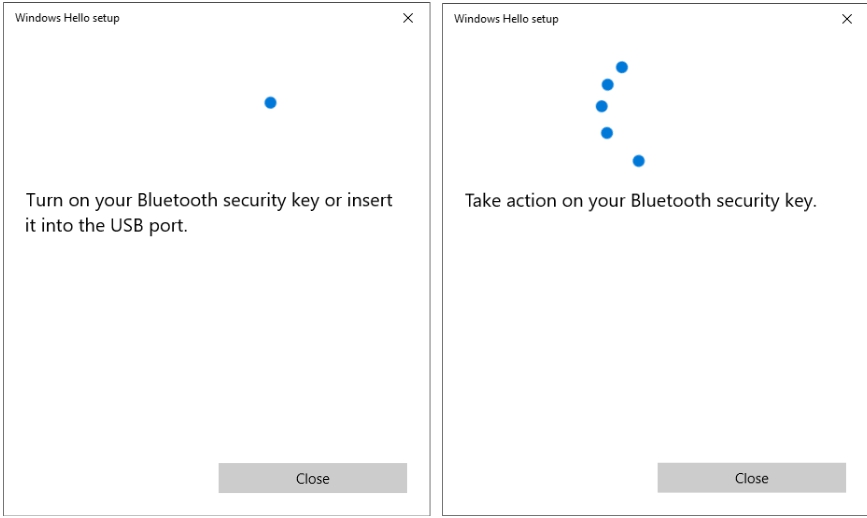
2. Після натискання на кнопку **Manage**, Hideez Key вимагатиме підтвердження операції коротким натиском кнопки. Якщо Ви не підтвердите дію протягом 20 секунд, Windows повідомить про проблему та перезапустить операцію. \
\
[Відео](https://youtu.be/baczWo7j73M)
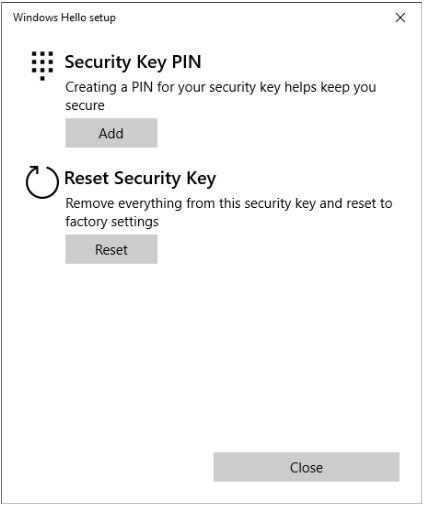
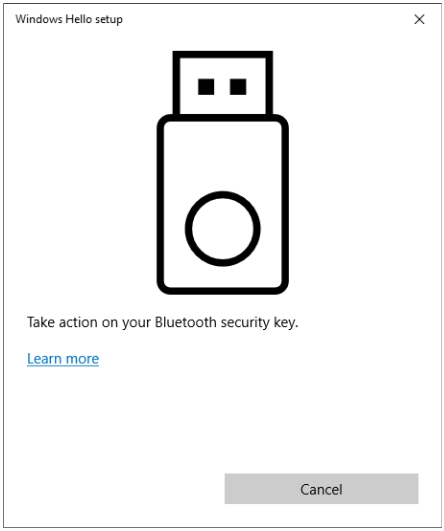
3. Коли повідомлення “Take action on your Bluetooth security key” з'явиться, підтвердіть дію коротким натиском кнопки на Hideez Key. Вікно "Windows Hello setup" з'явиться з меню "Add Security Key PIN" та "Reset Security Key". \
\
[Відео](https://youtu.be/baczWo7j73M)
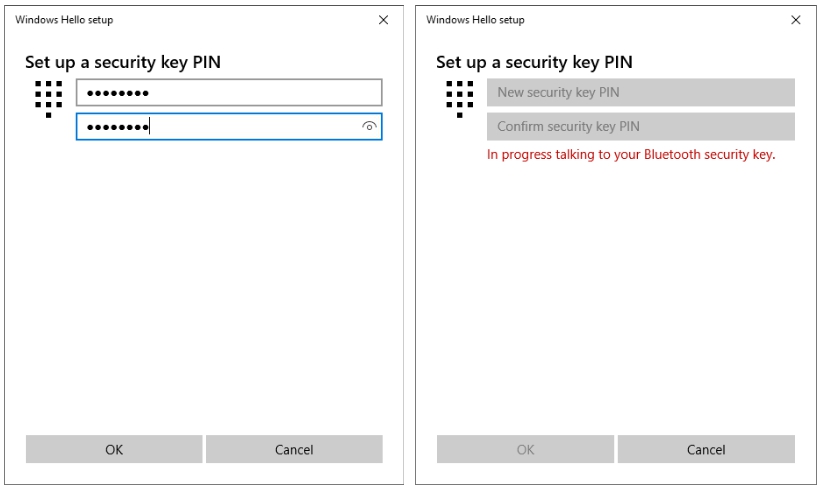
4. Оберіть “Add PIN to Security Key” та введіть однаковий PIN код, який містить від 4 до 32 знаків, двічі.\
### **Зміна PIN коду для технології FIDO**
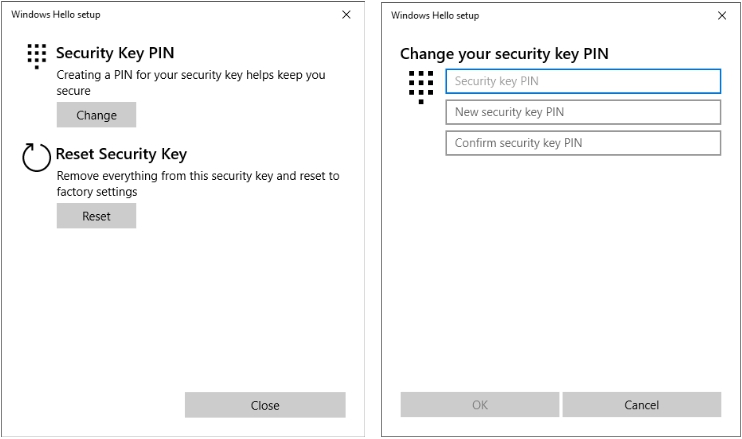
Перейдіть в розділ “Windows Hello setup” та оберіть “Change Security Key PIN”, щоб змінити PIN код. Далі Ви маєте ввести один раз ваш старий PIN та двічі - новий. Потім натисніть “OK”.\
### **Видалення PIN коду та очищення усіх даних FIDO**
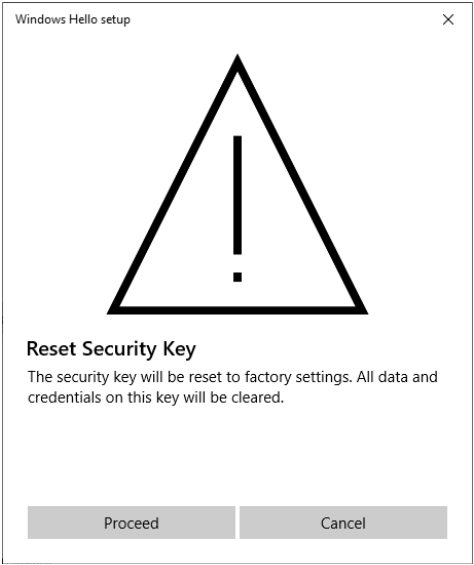
1. Відкрийте розділ “Windows Hello setup” та оберіть “Reset Security Key” і далі - “Proceed”, щоб видалити PIN код та усі дані FIDO. \
2. Щоразу повідомлення “Take action on your Bluetooth security key” з'являтиметься, підтвердіть дію коротким натисканням кнопки на ключі. Ця дія має бути підтверджена двічі.\
\
[Відео](https://youtu.be/baczWo7j73M)
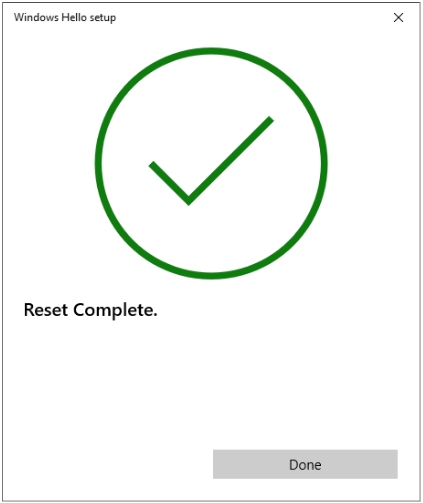
3. Успішність операції підтвердиться повідомленням “Reset Complete”. Після цього усі дані, асоційовані з FIDO (PIN, облікові записи, resident key) будуть видалені.\
### Налаштування двофакторної аутентифікації за допомогою FIDO U2F
Щоб налаштувати двофакторну автентифікацію за допомогою FIDO U2F у Gmail, Facebook, Twitter та/або низці інших сервісів, додаткове програмне забезпечення не потрібне. Будь ласка, дотримуйтесь інструкцій служб підтримки U2F, щоб використовувати Hideez Key як другий фактор. Ось деякі з них:
* [Google account](https://support.google.com/accounts/answer/6103523)
* [AOL](https://help.aol.com/articles/2-step-verification-with-a-security-key)
* [AWS Single Sign](https://docs.aws.amazon.com/singlesignon/latest/userguide/user-device-registration.html)
* [AWS Identity and Acess Management (IAM)](https://docs.aws.amazon.com/IAM/latest/UserGuide/id_credentials_mfa_enable_u2f.html)
* [Basecamp](https://3.basecamp-help.com/article/443-two-factor-authentication-2fa#use-a-security-key)
* [Binance](https://www.binance.com/en/blog/351376985820852224/you-can-now-use-hardware-security-keys-on-binance)
* [Bitbucket](https://support.atlassian.com/bitbucket-cloud/docs/enable-two-step-verification/)
* [Boxcryptor](https://www.boxcryptor.com/ru/help/boxcryptor-account/windows/#two-factor-authentication)
* [Cloudflare](https://blog.cloudflare.com/cloudflare-now-supports-security-keys-with-web-authentication-webauthn/)
* [Coinbase](https://help.coinbase.com/en/coinbase/managing-my-account/verify-my-identity/using-and-managing-security-keys)
* [Dropbox](https://help.dropbox.com/account-access/enable-two-step-verification)
* [eBay](https://www.ebay.com/help/account/protecting-account/tips-keeping-ebay-account-secure?id=4872\&st=3\&pos=1\&query=Tips%20for%20keeping%20your%20eBay%20account%20secure\&intent=2%20factor\&lucenceai=lucenceai#section2)
* [Facebook](https://www.facebook.com/help/401566786855239)
* [Gandi.net](https://news.gandi.net/en/2017/10/u2f-now-available-on-gandiv5/)
* [Gemini](https://support.gemini.com/hc/en-us/articles/360044275792)
* [Max Mind](https://support.maxmind.com/hc/en-us/articles/1260803946470-Two-Factor-Authentication-2FA)
* [GitHub](https://docs.github.com/en/github/authenticating-to-github/securing-your-account-with-two-factor-authentication-2fa/configuring-two-factor-authentication#configuring-two-factor-authentication-using-fido-u2f)
* [GitLab](https://docs.gitlab.com/ee/user/profile/account/two_factor_authentication.html#enable-2fa-via-u2f-device)
* [Gluu Server](https://gluu.org/docs/ce/authn-guide/U2F/)
* [GoDaddy](https://ua.godaddy.com/help/dodajte-aparatnij-klyuch-bezpeki-dlya-dvoetapnoyi-perevirki-31900)
* [ISL Online Remote Desktop](https://help.islonline.com/35746/286527)
* [Jira](https://aserve.atlassian.net/wiki/spaces/U2F/pages/746979329/How%2Bto%2Blog%2Bin%2Bwith%2B2FA%2Bfor%2BJira%2Busing%2BU2F%2Bdevice%2Bas%2Bauthentication%2Bsecond%2Bfactor)
* [JumpCloud](https://support.jumpcloud.com/support/s/article/Using-a-Security-Key-with-your-JumpCloud-User-Account)
* [Namecheap](https://www.namecheap.com/support/knowledgebase/article.aspx/10102/45/how-can-i-use-the-u2f-method-for-twofactor-authentication/)
* [Nitrado](https://server.nitrado.net/eng/news2/view/nitrado-highlighted-features-two-factor-authentication/)
* [Nulab](https://support.nulab.com/hc/en-us/articles/7732936736537-How-to-set-up-two-factor-authentication)
* [Opalstack](https://docs.opalstack.com/user-guide/your-account/#multi-factor-authentication)
* [Porkbun](https://kb.porkbun.com/article/119-how-to-secure-your-account-with-a-physical-security-key-using-webauthn)
* [PushCoin](https://kb.porkbun.com/article/119-how-to-secure-your-account-with-a-physical-security-key-using-webauthn)
* [Quonference](https://quonference.com/security-guide#yubikey)
* [Salesforce](https://help.salesforce.com/s/articleView?id=sf.security_u2f_register_security_key.htm\&type=5)
* [Segulink](https://segusoft.freshdesk.com/support/solutions/articles/19000117048-multi-faktor-authentifizierung-mfa-einrichten)
* [Sentry](https://blog.sentry.io/2016/06/22/introducing-2fa)
* [Shopify](https://help.shopify.com/en/manual/your-account/account-security/two-step-authentication#enable-two-step-authentication-with-security-keys)
* [Twitter](https://help.twitter.com/en/managing-your-account/two-factor-authentication#security-key)
* [Twitch](https://help.twitch.tv/s/article/two-factor-authentication?language=en_US)
* [Yahoo](https://help.yahoo.com/kb/-step-verification-security-key-sln35380.html)
* [WSO2](https://docs.wso2.com/display/IS560/Multi-factor+Authentication+using+FIDO)
* [/n software SFTP Drive](https://www.nsoftware.com/kb/articles/sftpdrive-authenticate.rst#seckey)
Менеджери паролів і платформи керування ідентифікацією:
* [1Password](https://support.1password.com/security-key/)
* [Authereum](https://medium.com/authereum/authereum-now-supports-hardware-security-keys-for-two-factor-authentication-2fa-dff699912b97?)
* [Auth0](https://auth0.com/docs/login/mfa/fido-authentication-with-webauthn/configure-webauthn-security-keys-for-mfa)
* [Bitwarden](https://bitwarden.com/help/article/setup-two-step-login-fido/)
* [Dashlane](https://support.dashlane.com/hc/en-us/articles/12817084382738-Can-I-use-a-security-key-with-Dashlane-2FA)
* [DUO](https://guide.duo.com/security-keys)
* [Egnyte Protect](https://helpdesk.egnyte.com/hc/en-us/articles/360040496691-Multifactor-Authentication-using-FIDO2-WebAuthn-)
* [ESET Secure Authentication](https://support.eset.com/en/kb3648-using-hard-tokens-with-eset-secure-authentication-7157)
* [HelloID](https://docs.helloid.com/hc/en-us/articles/360011028700-How-to-view-your-account-s-security-overview)
* [ID.me](https://help.id.me/hc/en-us/articles/360025737794-How-do-I-add-more-than-one-2-factor-authentication-2FA-method-to-my-ID-me-Account-)
* [Keeper](https://www.keepersecurity.com/ru_RU/support.html#q110)
* [Okta](https://www.yubico.com/us/works-with-yubikey/catalog/okta/)
* [Oracle](https://docs.oracle.com/en/cloud/paas/identity-cloud/uaids/configure-fido-security.html)
### Налаштування безпарольного входу за допомогою Hideez Key
Будь ласка, дотримуйтесь інструкцій служб, які підтримують безпарольний вхід FIDO2/WebAuthn, щоб використовувати ключ Hideez замість свого пароля:
* [Azure Active Directory](https://docs.microsoft.com/en-us/azure/active-directory/authentication/concept-authentication-passwordless#fido2-security-keys)
* [Centrify](https://docs.centrify.com/Content/CoreServices/Authenticate/U2FAuth.htm)
* [Curity](https://curity.io/resources/learn/webauthn-authenticator/)
* [Microsoft account](https://support.microsoft.com/en-us/windows/sign-in-to-your-microsoft-account-with-windows-hello-or-a-security-key-800a8c01-6b61-49f5-0660-c2159bea4d84)
* [Microsoft Azure Active Directory](https://docs.microsoft.com/en-us/azure/active-directory/authentication/concept-authentication-passwordless#fido2-security-keys)
* [SecSign](https://www.secsign.com/two-factor-authentication-fido2-webauth/)